Getting started
Import customers and organizations from a spreadsheet, keep organizations in step with groups and email domains, and export or clean them up — with a preview before every import, rule and clean-up, and no surprise emails to your customers.
What it does
Jira Service Management gives you one-at-a-time screens for customers and organizations. Customer Roster does the bulk work:
- Import customers and organizations from a CSV, with organization membership and project links, on every Jira Service Management site.
- Sync rules keep an organization in step with Jira groups and email domains — including customers you already have.
- Details: fill customer and organization detail fields in bulk.
- Participant rules add a group, or the request's organization, to new requests (off until you turn them on).
- Export customers and organizations per project or for the whole site.
- Clean-up finds customers in the wrong organization, in no organization, and empty organizations.
Customer Roster never emails your customers unless you choose to. Imports and rules are silent. Invitations and participant rules send Jira Service Management's own emails, and you see the count before anything is sent. See Email behavior.
Three promises
- Preview first. Every import, rule, clean-up and undo shows what will change, with counts, before you confirm. Scheduled syncs then follow the rule you saw.
- Only undoes its own work. The app keeps a record of every member, project link and participant it added. Syncs and undo only ever remove those, never someone you or your agents added. The only other removals are the rows you pick in Clean-up, and those can be undone.
- Nothing you can't take back. Undo an import, undo the last sync, or remove everything the app did. The app never deletes customer accounts.
Install and open it
- Install Customer Roster from the Atlassian Marketplace. You need to be a Jira admin.
- Open Jira settings → Apps and choose Customer Roster in the left menu.
- The first time you open it, Jira may ask you to Allow access. Do: customer accounts are created as you (see below).
Your first import
- Go to Import → Customers and download the customers template, or use your own spreadsheet.
- Upload the file. Leave the email choice on Don't email anyone.
- Check the column matching, then press Run the dry run.
- Read the totals and any errors. Nothing has changed yet.
- Press Continue to confirm. The button says exactly what will happen, for example Create 312 customers · no emails.
Full guide: Import.
Your first sync rule
- Go to Rules → Sync rules → New sync rule.
- Pick one or more Jira groups, or type email domains (or both), and the organization they belong in.
- Optionally pick service projects to link the organization to.
- Press Show preview to see who will join and who will leave, then save. The button names the change, for example Save rule · add 38 people.
Full guide: Sync rules.
Where things are
| Tab | What's there |
|---|---|
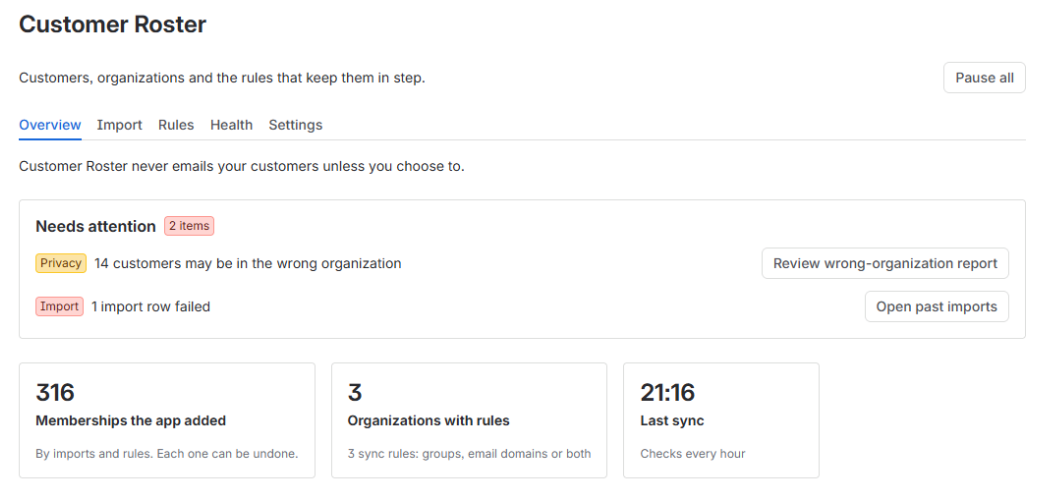
| Overview | Needs attention (wrong-organization customers, failed import rows, domain conflicts, rules with errors), each with a button that jumps to the fix; memberships the app added; organizations with rules; last sync; recent activity |
| Import | Customers, Organizations and Details uploads; Past imports (Continue, Retry failed rows, Undo) |
| Rules | Sync rules, Domains, Participant rules |
| Health | Clean-up (the wrong-organization report), Export, Activity |
| Settings | Settings: how often to check rules, confirm limits, your own public email domains, project admins, Remove everything this app did. Help: what the app does, who gets an email, known limits |
Pause all sits at the top right of every tab. One click stops sync rules and participant rules until you press Resume syncing. Imports aren't paused. Undo, delete and Remove everything still work.
Let project admins manage their own project
In Settings, turn on Let project admins use Customer Roster and press Save settings. Project admins then find Customer Roster under Space settings → Apps in their service project. They see Overview, Import, Rules and Health for their own project only: they can export, run the clean-up report and set participant rules. Imports, sync rules, domains and Settings stay with Jira admins, because creating customers needs a Jira admin. It's off by default.
On each organization's page
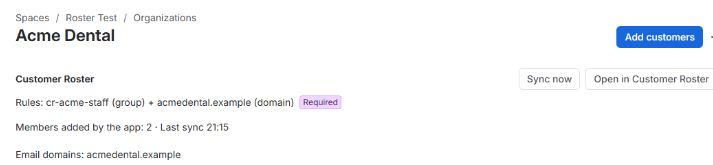
A small Customer Roster panel appears above the member search on every organization's page in your service project: which rules feed it, how many members the app added, its domains, the last sync, Sync now and Open in Customer Roster.
Limits
- One import runs at a time per site, up to 10,000 rows a file. Split bigger files.
- A sync rule can cover up to 20,000 person × organization pairs.
- Background work is spread out so one site never uses more than its share of the app's Atlassian rate limit: on a very large site, a big sync can carry on in the next hour.
Before you start: who does what
- Customer accounts are created as you, the Jira admin who starts the import. Jira only lets a Jira admin create customers, so the app runs that step with your permissions, in the background. If you stop being a Jira admin before it finishes, the remaining rows fail and another admin can resume them.
- Everything else — organizations, memberships, project links, details — the app does itself.
Before you uninstall: uninstalling doesn't undo anything the app did. Run Settings → Remove everything this app did first if you want its changes gone: it takes back the memberships, project links and request participants the app added and deletes its rules. Customer accounts and organizations it created stay. Read more.